


The Default Screen

All the instructions in this manual will assume that
you are starting from the default screen, which will
appear similar to the image above where "Set Point" is the desired
inside temperature, and "Inside" is the actual current reading. The
"+" symbol in the bottom right hand corner indicates whether it is
heating "+", cooling "-", or waiting "nothing displayed".
You can return to the default screen by pressing the
left arrow key (key 3), until the screen is displayed.
The only instance where this will not be true, is if
you have activated a screen that requires input. In
this case you must complete the screen before being
able to return to the default screen. This will be
described in greater detail later in the manual.
When a screen is calling for input it will display a
flashing cursor similar to this "".
For various reasons this cannot be displayed by the
screen captures of the control panel, so the flashing
cursor is substituted by the tilde symbol like this
"~". An example is displayed below in the set system
time screen.
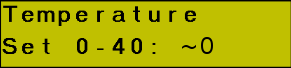
In the event you find yourself in a screen like this
by accident and do not want to change anything,
press the enter key (key 8) until the screen is
satisfied, i.e. there is no flashing cursor. Pressing
the enter key will accept the values that were stored
in the screen prior to you accessing it.
Menu's
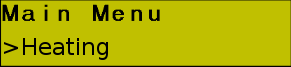
Any screen with a ">" symbol, as in the image below, indicates
you are in a menu. In the case of the image below, you are in the
"Main Menu" with the "Heating" sub menu selected.
You can scroll through menu items by using the up and down arrow key's,
(key's 4 and 6). You can select the menu item by using the right arrow
key, (key 5), or you can return to the previous screen by using the
left arrow key, (key 3).